

Input lists
Sharing an input list
Send the link or embed the list inside a rider.
You've built your input list — now to get it to the people who need it. There are two normal ways: a public link you send on its own, or embedded inside a rider so it travels with everything else.
The two ways to share
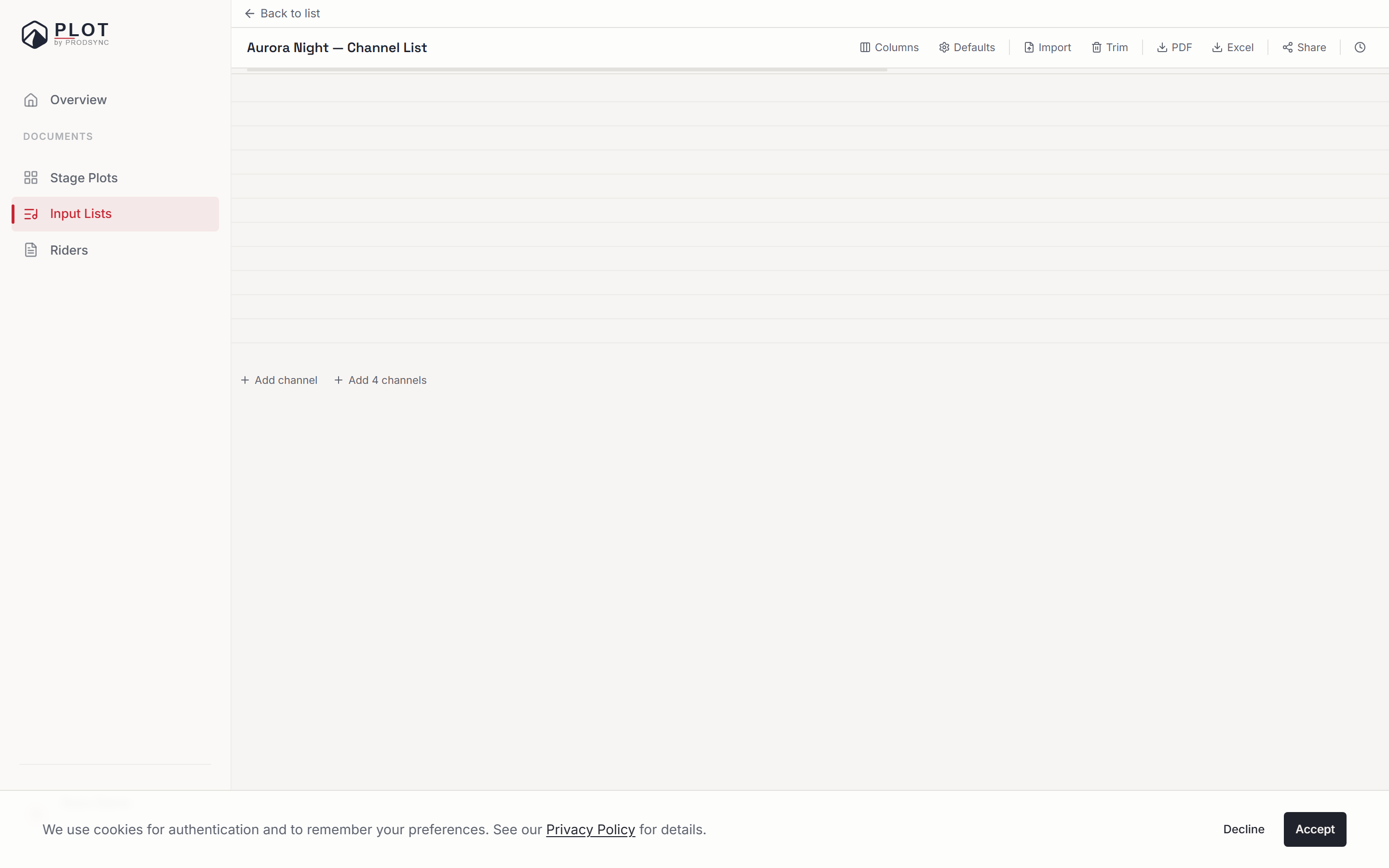
Public link. Click Share in the toolbar and turn the public toggle on. You get a URL like /plot/input-lists/il-xxxxxxxx. Anyone you send it to can open it in any browser, no account needed, and they see a clean read-only table of your channels.
Embedded in a rider. In the rider editor, add the Input List section and link one of your lists. It renders inside the rider like any other section.
Which to pick
Most of the time, embed it in the rider. The rider is what production teams and FOH engineers actually read before a show, and one document means nothing gets lost or opened on the wrong screen.
Better still: when you share the rider, the linked input list comes with it. Recipients of a public rider link see the channel list on the page, and collaborators you invite to the rider get access to the list too — as long as you own it. Nothing extra to send.
Send a standalone link when:
- Your FOH engineer asks for "just the input list".
- You're working on the list with a bandmate and the rider isn't ready yet.
- A venue's form asks for an input list URL.
What the recipient sees
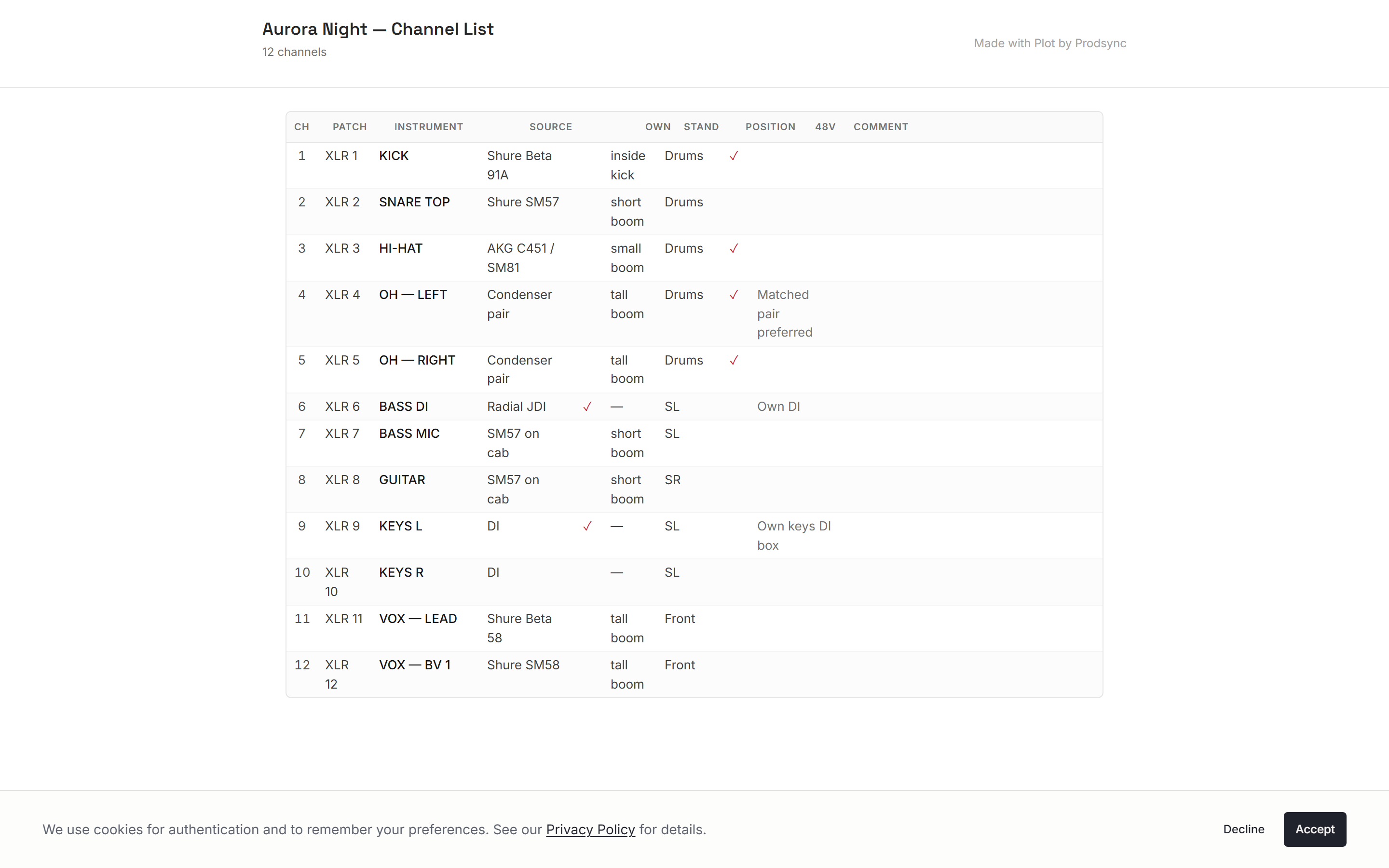
A styled table with every channel, patch, instrument, source, stand, position, and the 48V and own-gear flags, plus a channel count at the top. They can't edit anything. They can scroll it on a phone, or print the page if they prefer paper.
Turning sharing off
Open the share panel and toggle public off. The link stops working immediately — anyone who opens it sees "This link is no longer available". Toggle it back on and the same URL works again.
Collaborators on an input list
The same panel has an Invite button. An editor can change channels alongside you, a viewer can only read. That's the right choice for a bandmate or a tech who's helping you build the list, rather than sending them a public link they can't edit.
What's next
Heading out with a full pack of documents? How public links work covers what's actually visible to recipients and how view counts work.