

Sharing & collaboration
Working with collaborators
Invite people, choose what they can do, and see who changed what.
Plot lets two kinds of people see your documents: collaborators and anyone with a public link. This page is about the first kind — the people you invite by email, who log in and can do more than read.
Collaborator vs. public link
A public link is open to anyone who has the URL, and read-only. A collaborator is a specific person, invited by email, who logs in to Plot and gets the document in their own account.
If you want someone to make changes alongside you, they need to be a collaborator. If you just want them to read it once, a public link is simpler.
Inviting someone
Open Share on any stage plot, rider, or input list — the panel is titled Collaborators. Click Invite, then:
Add the email addresses
You can add several at once; each becomes a chip in the field. Plot checks each address as you add it and won't let you invite yourself or the same person twice.
Pick a role
Editor or Viewer, applied to everyone in this batch.
Send
Each invitation is reported separately — sent, resent, or failed — so one bad address doesn't hide the rest.
Under the field, Recent lists people you've collaborated with before, so the fifth invitation to your production manager is one click.
They get an email with a link. If they don't have a Plot account yet, the link walks them through creating one — they don't need to sign up in advance. An invitation is tied to the address you sent it to: opening it while logged in as someone else says so plainly rather than silently failing.
The three roles
- Owner — you. Full control, including deleting the document and managing sharing.
- Editor — can open the document and change its content. Cannot delete it, manage its sharing, or invite others.
- Viewer — can open and read. The rider editor shows viewers a banner saying the document is view-only, so nobody wastes ten minutes wondering why nothing saves.
What comes with a rider
Inviting someone to a rider also gives them the same access to the stage plot and input list it embeds, as long as you own those too. The panel shows exactly what's included before you send, and flags anything owned by someone else as not included. See sharing and sending your rider.
Managing people afterwards
The collaborator list shows everyone on the document with their status — Pending until they accept, then Accepted. From the same list you can change someone's role or remove their access, which takes effect on their next refresh. You can re-invite later if it was a mistake.
Shared with me
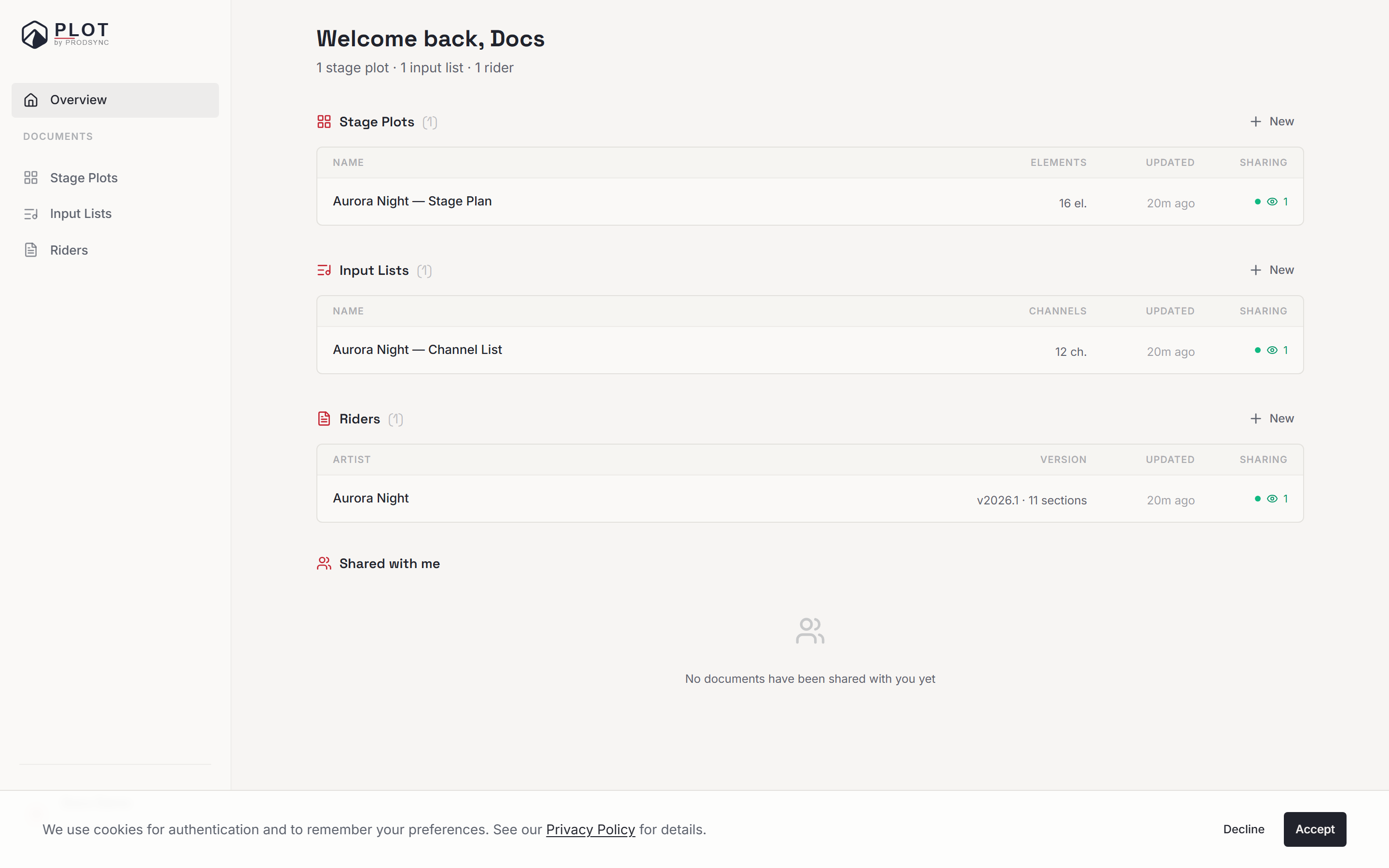
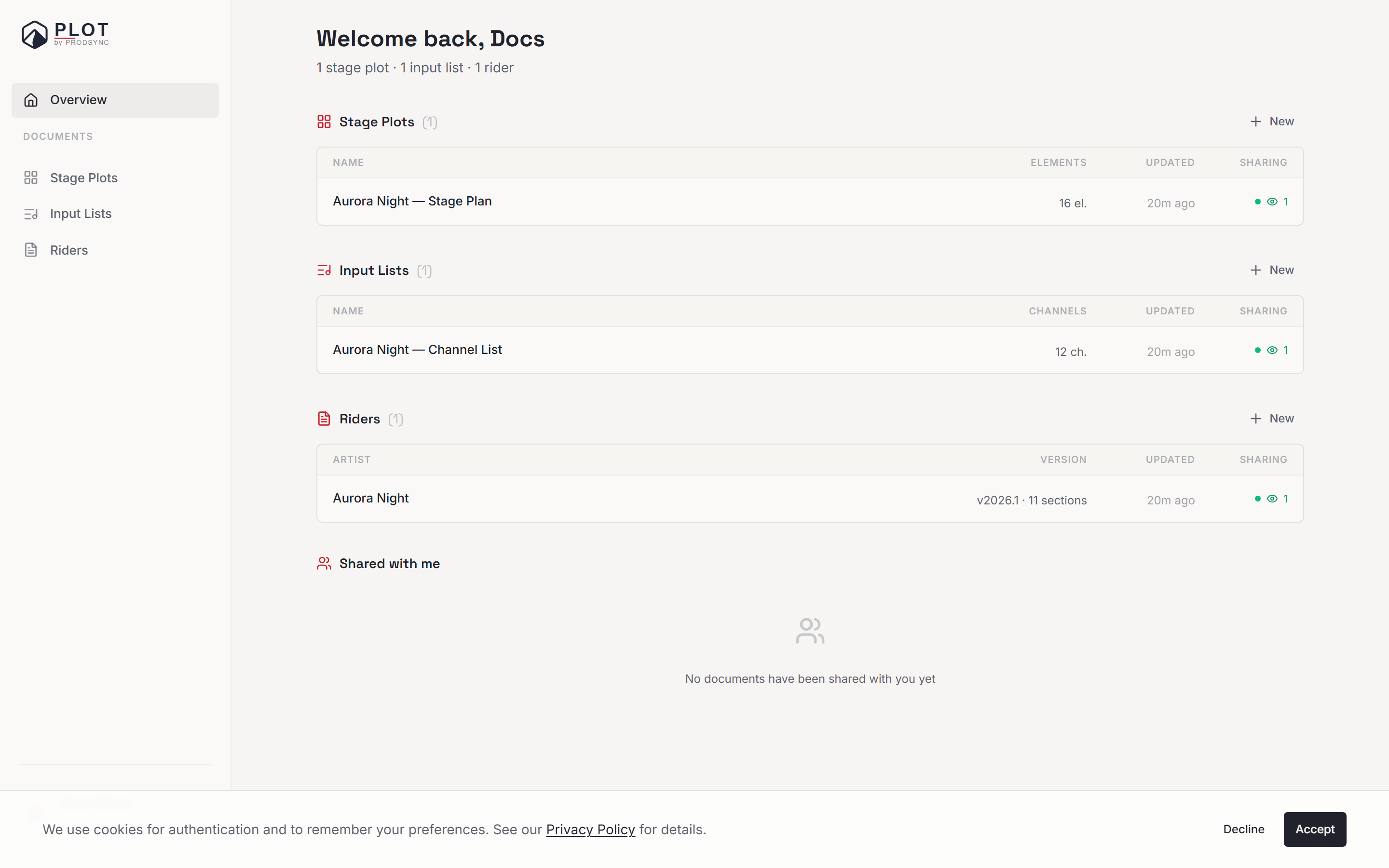
Documents other people have invited you to appear in a Shared with me section on your dashboard, and on the list page for each document type. Rows show who shared it and your role, so it's obvious what's yours and what you're helping with.
Each row also has a Copy to my account button. That makes an independent copy you own outright — useful when a bandmate's rider is the right starting point for yours, or when someone's leaving the project and you want your own version.
The activity log
Every document has an activity log, opened from the clock icon in the toolbar. It records who created it, who edited it, when the public link was toggled, and when collaborators were added or removed — each with a name and a relative timestamp. If a rider mysteriously changed overnight, this is where you find out who was in it.
What's next
If you want a recipient who can't edit and doesn't need an account, head to how public links work.