

Riders
Branding and exporting to PDF
Set your colors, cover page, and logo — then export a clean PDF.
A rider is a working document, but it's also the first impression a venue gets of your operation. A little visual polish goes a long way. The Branding panel sets colours, typography, the cover page, and your logo — and the PDF comes out looking exactly like what you see on screen.
Opening Branding
Click Branding in the rider editor's toolbar. Everything you set applies to that rider only, so different artists on the same account can look completely different.
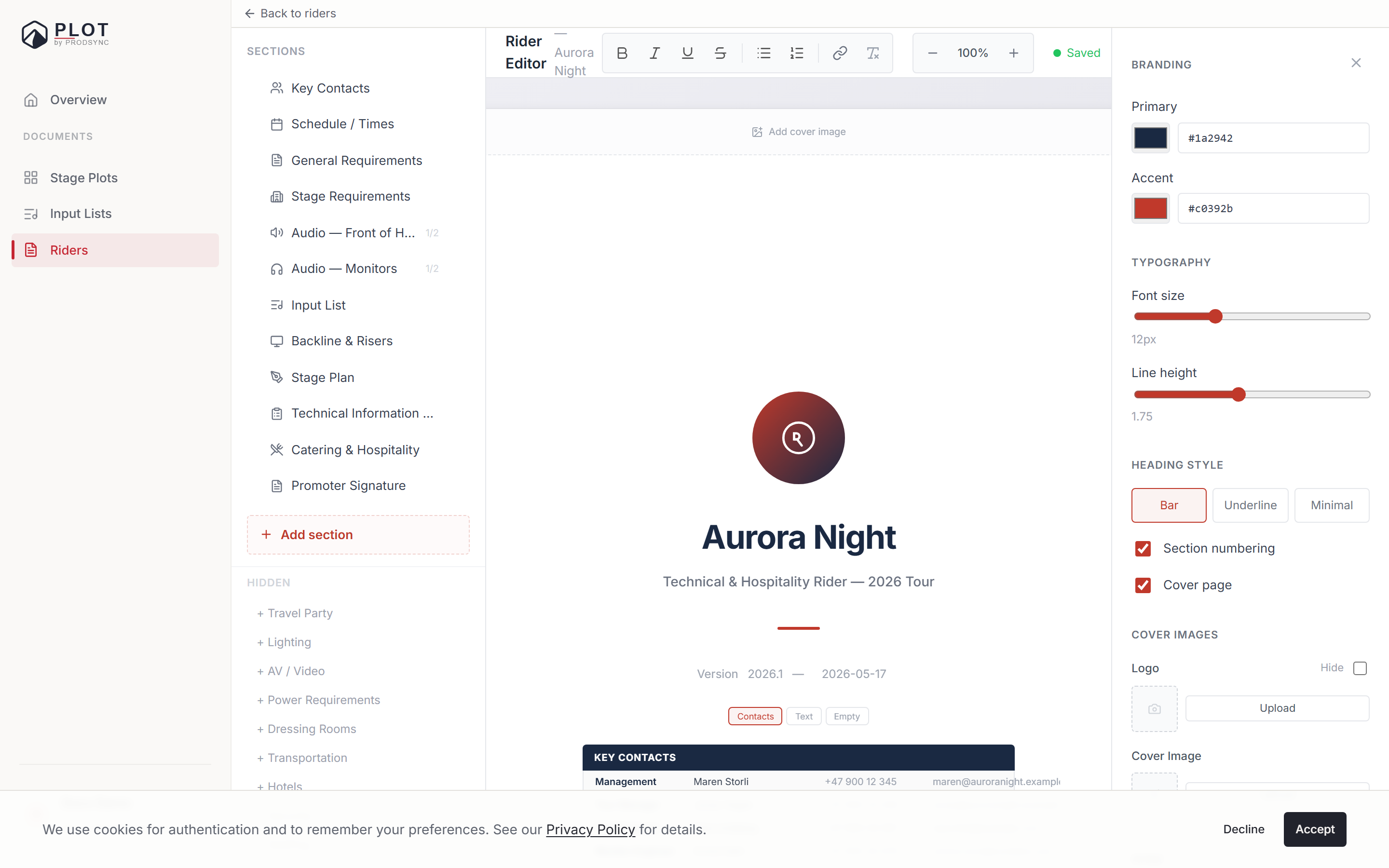
What you can control
Primary and accent colour
Primary carries headings, section numbers, and the cover. Accent handles smaller highlights. Pick something from your artist identity — an album cover, a logo, a merch design.
Typography
Font size and line height for the body text. Nudging these is also the quickest way to pull a rider back from spilling onto an extra page.
Section numbering
On gives you "1. Schedule, 2. Stage Requirements, 3. Audio". Numbering makes a long rider much easier for a venue to reference on the phone at 8am. The setting applies to the editor and the PDF equally.
Cover page
A toggle. On gives you a full cover with artist name, subtitle, version, and logo. Off starts the document on the first section.
Logo
Upload a PNG or SVG, and set its scale. There's also a Hide checkbox next to it, for when you want the logo on file but not on this version of the document. A transparent background looks cleaner than a white box.
Cover image
A photo behind the cover text, with height, crop position, opacity, and vertical placement, so the text stays readable over it.
Artist, subtitle, version, footer
The name as it appears on the cover, a subtitle ("Summer 2026 Tour", "Technical Rider"), a version number, and a footer line that runs on every page — usually the tour manager's contact or a website.
Exporting to PDF
Click PDF in the toolbar, or press Ctrl + Shift + P. Your browser's print dialog opens — choose Save as PDF as the destination and save.
That's not a workaround, it's the design. Plot prints the exact page simulation you've been editing: the same A4 sheets, the same margins, the same running header, the same footer and page numbers. There is no second layout engine that could disagree with the screen, which is what used to make exported riders look subtly different from the editor.
A few consequences worth knowing:
- You don't need to touch the print settings. The document carries its own margins, so "Default" and "None" print identically, and the browser has nowhere to put its own date/URL header — it drops it on its own.
- The text stays text. It's selectable and searchable in the resulting PDF, not a picture of a page.
- What you see is what you get. If a section breaks across pages on screen, it breaks there in the PDF too. If you don't like where it breaks, move a subsection or trim a paragraph and watch the break move.

Getting the PDF right
- Check the page breaks in the editor, since that's where they're decided. Section width (full vs half), font size, and line height all nudge them.
- Print one physical copy before a tour. You'll catch things that look fine on a screen and terrible in ink.
- Re-export after edits. The PDF is a snapshot; the rider keeps moving.
Live link vs. PDF
The PDF is one way to share a rider, and often not the best one. A shared link always shows the current version, and the public page has its own Download PDF button, so a venue that wants a file can still get one. That's covered next.
What's next
See Sharing and sending your rider for how to get the document into a venue's hands.