

Riders
Writing and organizing sections
Enable what you need, reorder with drag and drop, and write in plain language.
Everything in a rider lives inside a section — Schedule, Audio, Catering, and so on. The editor is built around turning the right sections on, ordering them, and writing in them.
What you see is what prints
The editor doesn't show you a text box that later becomes a document. It shows you the document: real A4 pages, with your margins, running header, footer, and page numbers already in place. When a section grows past the bottom of a page, the page break appears in front of you and the rest flows onto the next sheet — the same way a word processor works, and the same way the PDF will come out.
This is worth internalising: if something takes space in the editor, it takes exactly that space in the PDF. There's no separate preview to check.
The sidebar is your map
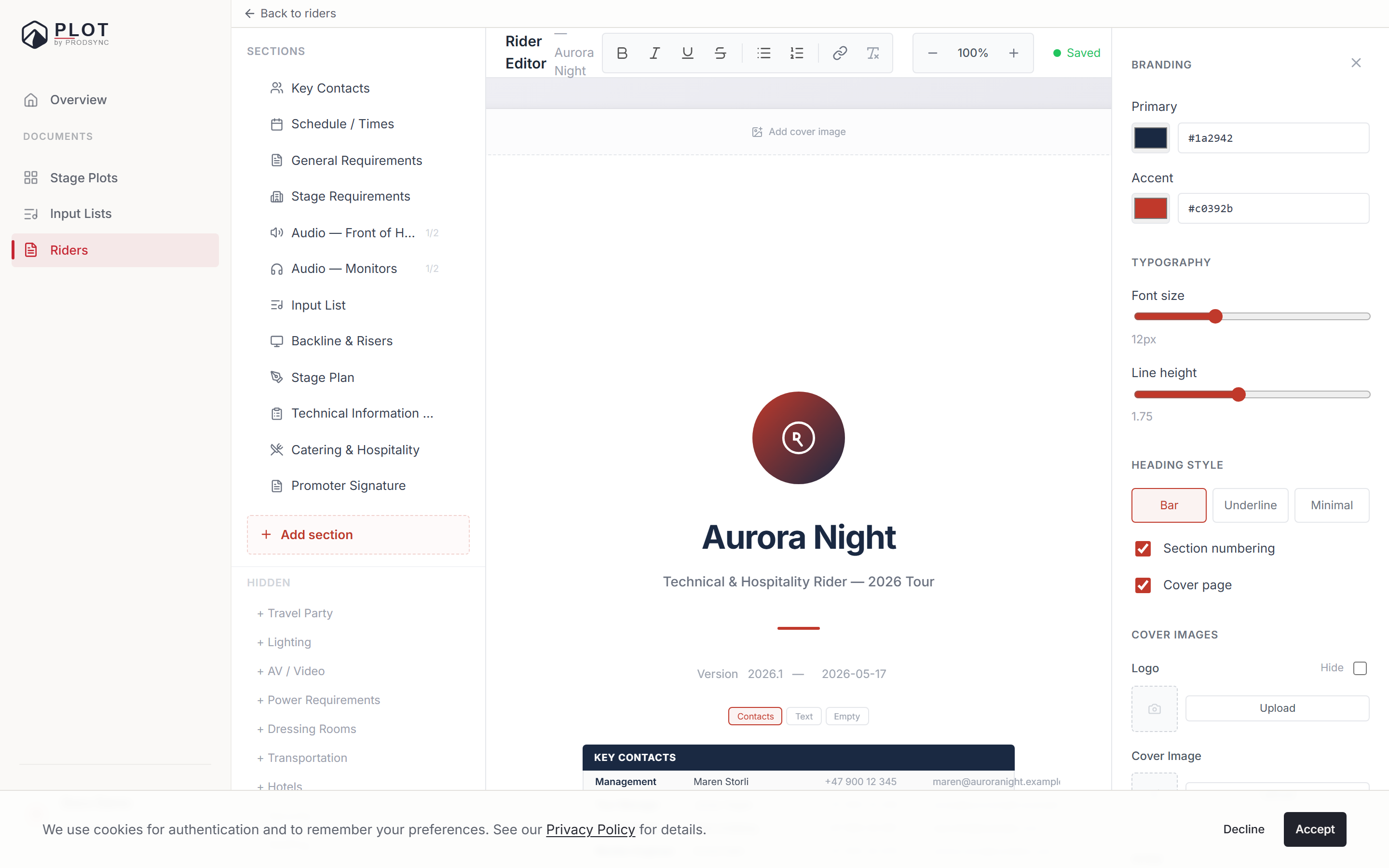
The sidebar lists the sections that are switched on, in the order they appear in the document. Click one to jump to it on the page.
Each row has a menu with everything you'd expect:
- Rename — the title in the sidebar and on the page are the same thing.
- Move up / Move down, or grab the handle and drag.
- Full width / Half width.
- Hide section — it drops down to the Hidden group at the bottom, keeping its content in case you want it back.
- Remove section — for good.
Below the list, Add section opens a searchable list of everything Plot knows about. And under Hidden, any switched-off section is one click from returning.
Sections and subsections
Bigger sections are split into subsections. Audio, for example, has separate subsections for FOH, monitors, and crew; Lighting and Schedule work the same way. Each subsection has its own title and its own body text.
Subsections can be reordered by dragging inside their section — and dragged into a different section if you decide a paragraph belongs somewhere else. Long sections split between subsections when they cross a page boundary, so a section never breaks in the middle of a sentence if there's a cleaner place to break it.
Writing in a section
Click anywhere in a section body and type. It's a normal rich-text editor: bold, italic, underline, strikethrough, bullet and numbered lists, links, and three heading levels.
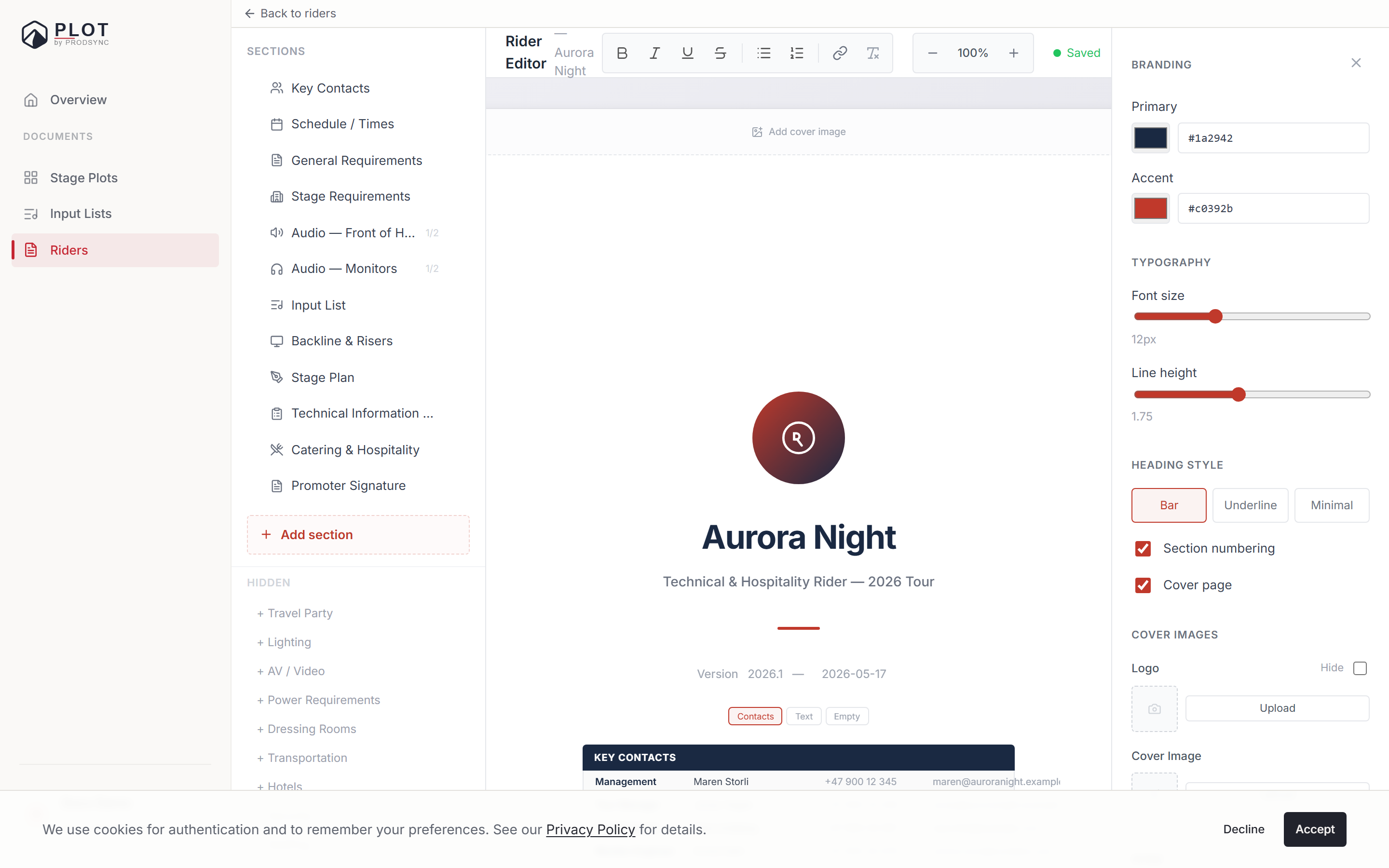
Two toolbars are involved:
- The top toolbar holds text formatting, Insert table (pick a size from the grid, or set your own rows and columns), and Insert image (uploads a file). Both inserts go into the text block you last clicked into — if nothing is focused, the buttons tell you to click into a block first.
- A bubble menu appears over your selection with heading levels and text colour. Put the cursor in a table and it turns into table controls: add or remove rows and columns, toggle the header row, align, cell background, delete table. Select an image and you get width and remove.
Blocks beyond text
Most sections are plain rich text, and that's usually right. Where something more structured helps, Add section → Add Block gives you:
- Table — custom rows and columns.
- Input / Channel List — link one of your input lists, or start an unlinked table. A linked list has a refresh button to pull the latest version and a shortcut into its editor.
- Key-Value Fields — label and value pairs, good for short facts like dimensions or power specs.
- Checklist — checkable items; the fastest thing to scan on a printed backline or catering page.
- Image Block — a floor plan, a reference photo, with an optional caption.
- Catering & Hospitality — a multi-field block where you can add, remove, and rename the fields.
- Contacts Table — role, name, phone, email.
- Stage Plan — embeds one of your stage plots, with rotation and scale controls, and an unlink button.
Width: full or half
Each section is full width or half width. Two half-width sections sit side by side on the page — good for pairs like Power and Stage Dimensions, or two halves of a catering list. Everything stacks on a narrow screen, so nobody gets squeezed.
Saving and undo
The rider saves itself a couple of seconds after you stop typing, and the toolbar tells you where you stand — Save while something is pending, Saved once it's stored. Ctrl + S saves now.
Undo is aware of where you are: inside a text block Ctrl + Z steps back through your typing, and outside one it steps back through structural changes like moving or removing a section.
A few practical habits
Write for a stranger
The person reading your rider has never met you. "Backline provided by venue" beats "see previous email".
Say how firm each thing is
There's a difference between barriers and a specific brand of coffee. Write the important things as requirements and the rest as preferences, so a venue knows where to push back.
Use the checklist block for gear
In Backline and Catering, a checklist reads faster than a paragraph and scans better on paper.
Review before every tour
Riders rot. Skim the whole document once before sending it to a new venue.
What's next
Got an old PDF rider from a previous tour? You can import it instead of retyping. See Importing an existing rider PDF.