

Stage plots
Sharing your stage plot
Turn on the public link, copy it, and see what recipients see.
A stage plot is only useful if the people running the show can see it. Plot's sharing works with a public link — anyone you send it to can open it in their browser, no account, no download, no app.
Turning on the public link
Sharing is off by default. Nothing leaves your dashboard until you say so.
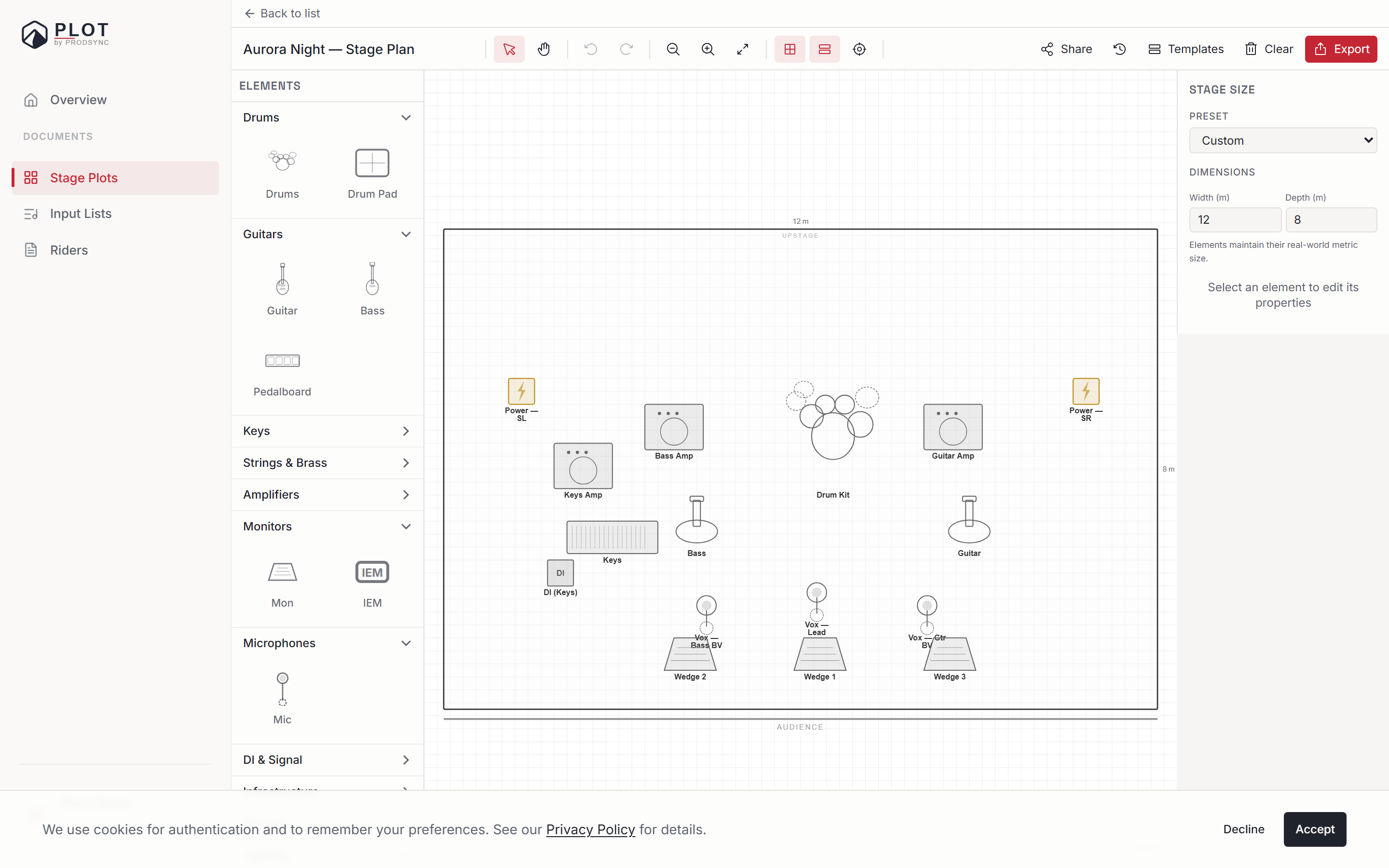
Open the share panel
Click Share in the editor toolbar. The panel that opens is titled Collaborators — it handles both the public link and the people you invite by email.
Flip the toggle
Turn Public link on. Plot generates a URL that looks like
/plot/stageplots/gr-xxxxxxxx.Copy the link
Click the copy button next to the URL. Paste it into an email, a text message, or a booking portal.
That's the whole flow. The moment the toggle is on, the link works.
What recipients see
When someone opens your link, they get a read-only view of your stage plot. They can't edit, move, or delete anything. They see:
- The stage outline, labelled Upstage at the back and Downstage at the front, with the dimensions in metres
- Every element you placed, with its label
- Rotations, sizes, and riser groupings — exactly how you laid it out
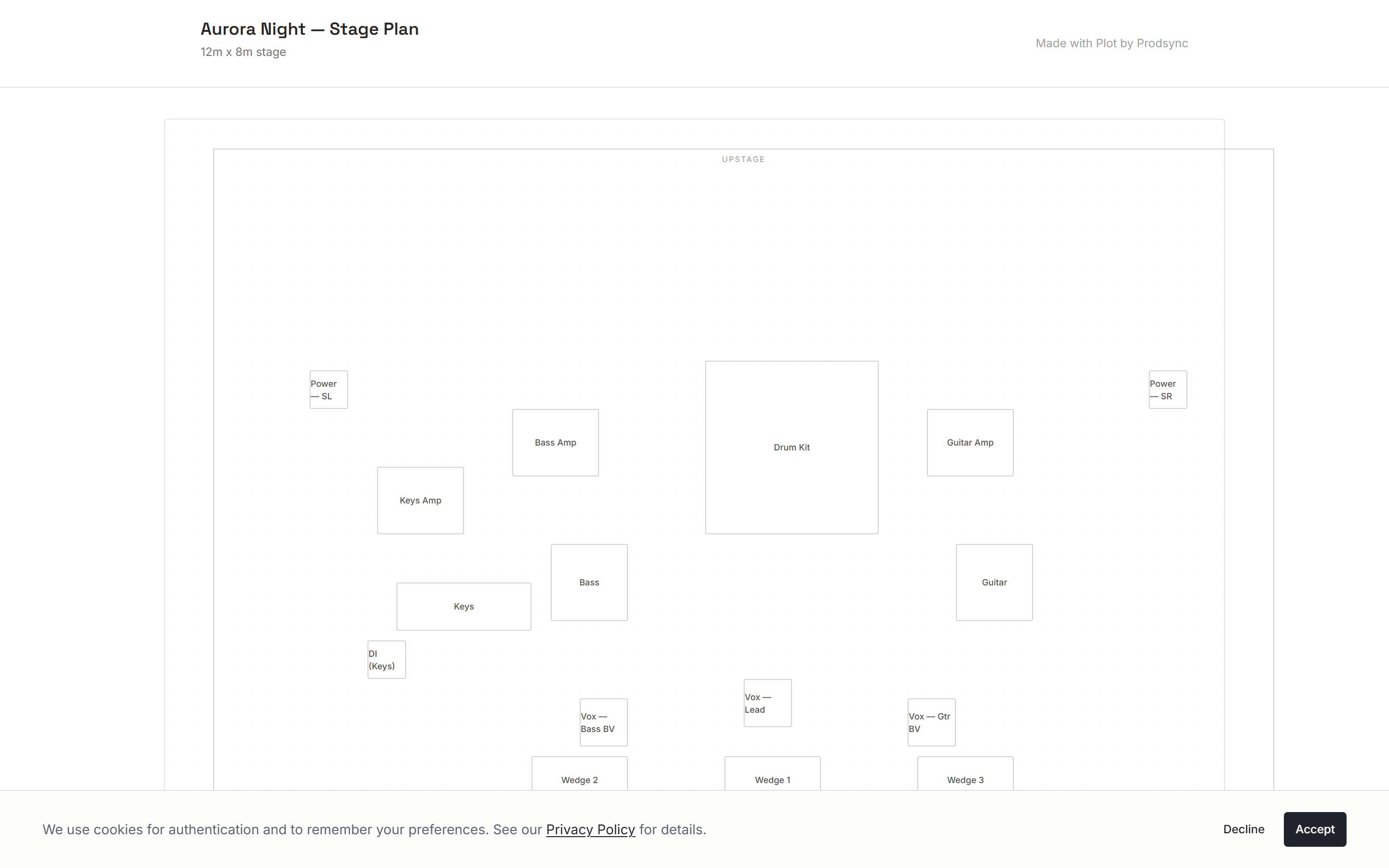
There's no sign-up wall over your work — just a small "Made with Plot by Prodsync" line at the bottom. If they want it on paper, they print the page from the browser.
Revoking access
Plans change. A venue asks for the wrong plot. You shared a draft and want to send the final version instead.
Open the share panel and turn Public link off. Anyone who opens the old URL now sees "This link is no longer available" with a note that the owner may have disabled sharing. Turn it back on and the same link resumes working.
Who's actually looked at it
The share panel doesn't show view counts — your dashboard does. In the overview, the sharing column on each row shows a green dot with an eye and a number for public documents that have been opened, and hovering tells you when it was last viewed. That's the quickest way to tell whether the venue actually clicked the link you sent on Tuesday.
Sharing with someone who needs to edit
The same panel has an Invite button. Enter an email address, pick Editor or Viewer, and Plot sends them an invitation. That's the right path for a bandmate or a production manager who needs to change things — see working with collaborators.
A note on privacy
The link uses a random identifier (the gr-xxxxxxxx part), so the URL itself is the password. Anyone who has it can view the plot, but nobody can guess their way to your other documents. Treat it like a Drive share link — send it to the people who need it, and revoke it if it ends up somewhere you didn't expect.
What's next
You now know how to make a stage plot, edit it, get a head start from a photo, and share it. Riders and input lists work the same way, so they'll feel familiar — start with creating your first rider.