

Input lists
Editing channels and syncing to riders
Adjust rows, columns, phantom power, and push changes into linked riders.
Once your input list exists, filling it in is mostly typing. Everything is editable in place — click a cell, type, move on.
Editing cells
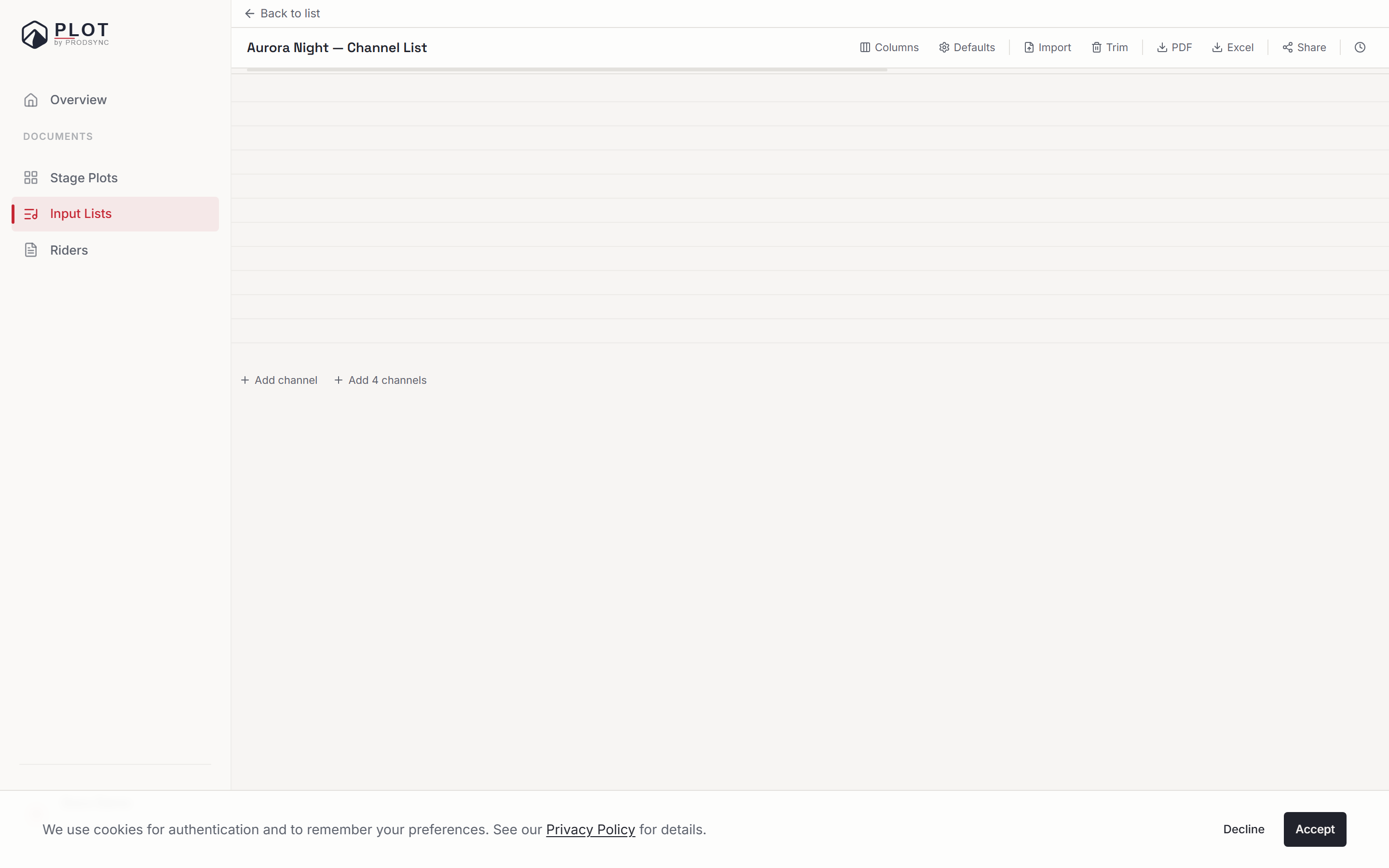
It behaves like a spreadsheet:
| Key | What it does |
|---|---|
| Tab | Commit and move to the next text cell, wrapping to the next row at the end |
| Shift + Tab | Same, backwards |
| Enter | Commit and drop to the same column in the next row |
| Esc | Cancel the edit and leave the cell as it was |
| Space | Toggle a checkbox cell (Own, 48V) |
Tab deliberately skips the checkbox columns, so tabbing across a row runs through the things you actually type. Reach a checkbox with the arrow keys and press Space instead.
As you type, Plot suggests values you've used before in that column — mic models especially — so the third SM57 is a couple of keystrokes.
Each change saves as you make it. The toolbar shows Saving... briefly and Saved the rest of the time, and Undo (Ctrl + Z) steps back through your edits, including row reordering.
Rows
- Add a row — Add channel at the bottom of the table, or Add 4 channels when you're building out a section.
- Reorder — drag a row by the handle on its left edge. Channel numbers follow the new order.
- Clear a row — the row menu's Clear row empties it but keeps the line.
- Remove a row — Remove row in the same menu.
- Trim — in the toolbar, removes the empty rows at the end of the list in one go. Handy after starting with 32 rows and using 19.
Columns
The Columns button opens the column manager: toggle any column off, rename it, drag to reorder, or add a custom column of your own. Double-click a column header to rename it right there, and drag the edge of a header to resize.
The globe button sets this list's language. Column headers you haven't renamed, the PDF and Excel exports and the public link follow it, and it is independent of the language Plot itself is shown in. Headers you typed yourself are kept as written.
What new lists start with — language, columns and row count — is set from Defaults on the Input Lists page, not from inside a list. Changing the defaults doesn't touch lists that already exist.
Phantom power (48V)
The 48V checkbox is for channels that need phantom power. On for:
- Condenser microphones — most overheads and vocal condensers.
- Active DI boxes — anything that says "active DI" on the label.
Off for dynamic mics (SM57, SM58, Beta 52A), ribbon mics, and passive DIs. Phantom power into a ribbon is a good way to ruin a ribbon, so if in doubt, ask your engineer.
Own gear
Own means "the artist is bringing this, the venue doesn't need to provide it." Tick it for in-ears, personal wireless mics, your own bass DI, or any mic that's part of your kit. Engineers and production managers read this column to know what to pull from their locker.
Riders that use this list
If this list is embedded in one or more riders, the editor tells you: a badge shows how many riders are linked, and hovering lists them.
The first time you edit a linked list, a dialog explains the thing that matters — changes here don't automatically update those riders. It offers a checkbox, Sync riders after editing, and a "don't show this again for this list" option.
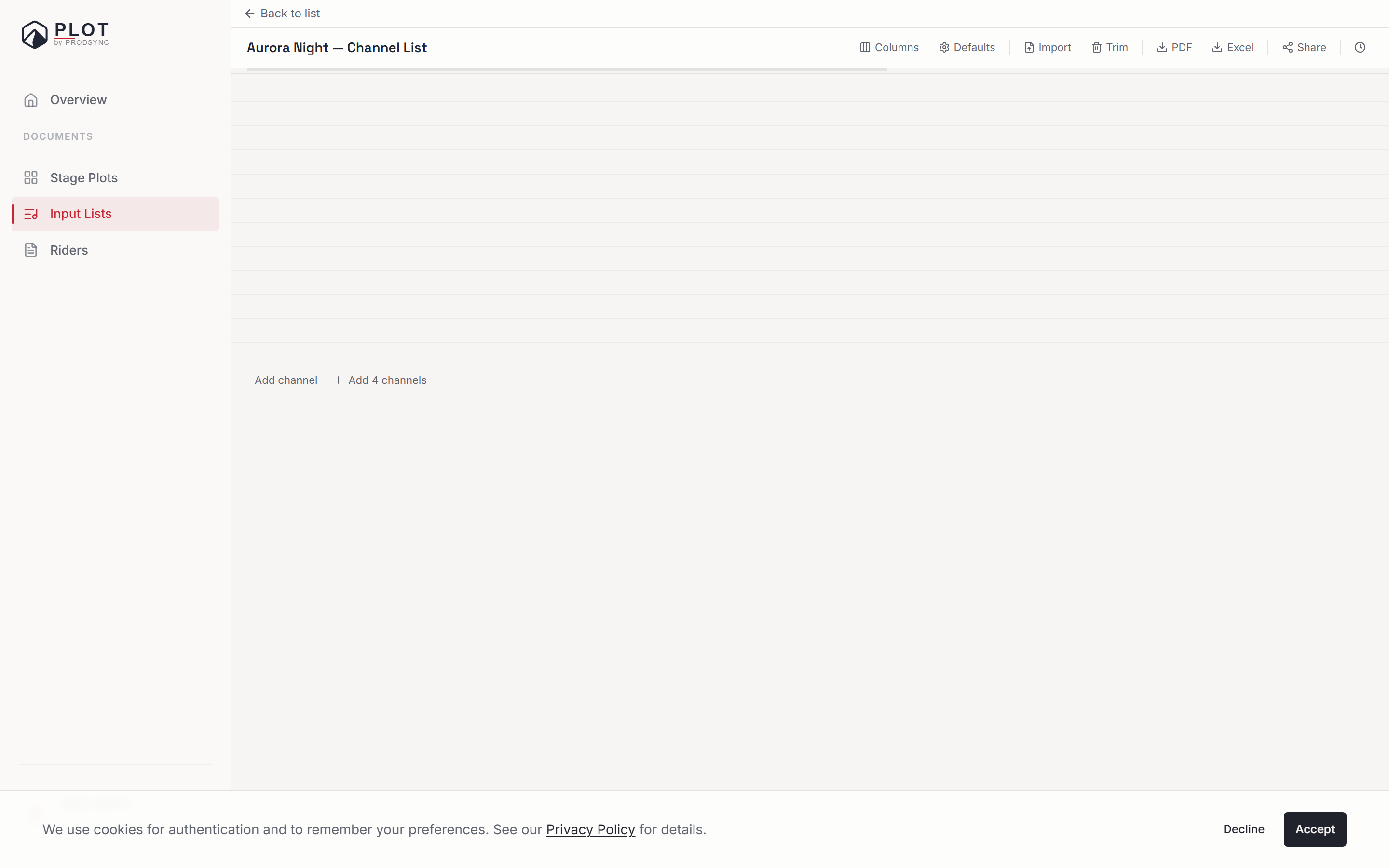
If you tick it, a bar stays at the bottom of the editor — "Sync to 3 linked riders when done" — with a Sync now button. Press it when you're finished editing and every linked rider picks up the current channels. Inside a rider, the input list block also has its own refresh button that pulls the latest version on demand.
Exporting
PDF and Excel in the toolbar export the list as it stands, with your column names and widths respected. Thirty-two channels fit comfortably on one A4 page, and up to 48 still fit on a single sheet.
What's next
Once the list is in shape, read sharing an input list to get it in front of whoever needs it.